Reels safe zone template — download the PNG overlay (and what TikTok and Shorts actually publish)
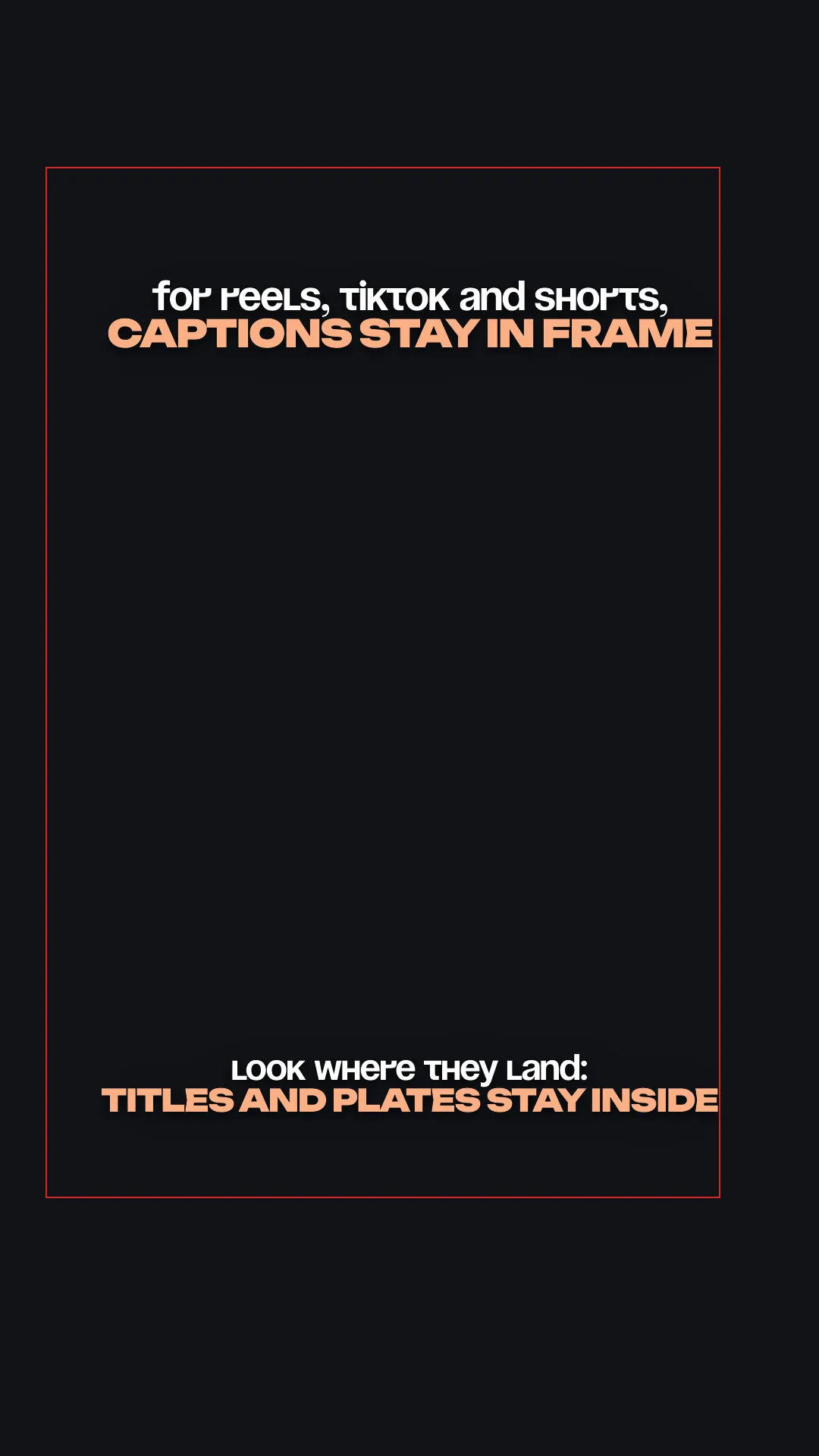
This free 1080×1920 PNG overlay shows ReelsCut's safe zone for automatic captions and titles: 220 px at the top, 340 px at the bottom, 60 px on the left and 130 px on the right. The margins come directly from our rendering code, not Meta's advertising specifications. TikTok and YouTube Shorts publish no fixed number — we link to their own downloadable templates instead of guessing one.
Download the Reels safe-zone overlay
This transparent PNG is sized to a 1080×1920 vertical Reels export. It marks the margins ReelsCut uses for automatic text placement. Both the overlay and the table below read the same constants as our rendering engine; this is not an advertising safe-zone template from Meta.
Drop it onto the top track of your timeline as a guide layer, line your captions and title up inside the clear area, then hide or delete the overlay before you export. It carries geometry only — no text is baked into the file, since text rendering is not guaranteed to look identical wherever the PNG gets opened.
| Platform | Safe-zone guidance | Where to get it |
|---|---|---|
| Instagram Reels — ReelsCut | 220 px top, 340 px bottom, 60 px left, 130 px right | ReelsCut rendering code; downloads below |
| TikTok | No official number — depends on caption length and interactive add-ons | TikTok's own downloadable template |
| YouTube Shorts | No official number — depends on ad format, campaign type and screen | Google Ads' own downloadable template |


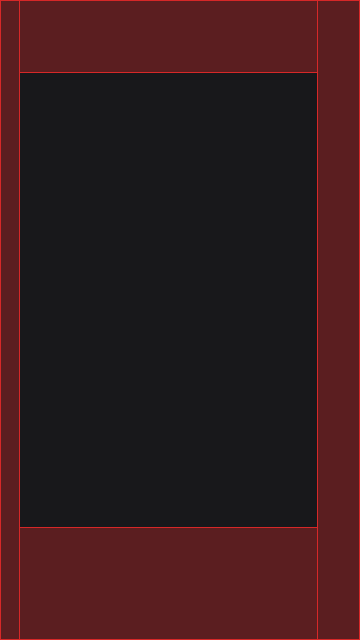
Reels safe-zone pixels, from ReelsCut's rendering code
These are the margins used by ReelsCut's automatic text placement, sourced from montage/render_cards.py (SAFE_TOP, SAFE_BOTTOM_Y, SAFE_LEFT_X and SAFE_RIGHT_X). Bottom and right margins are the canvas size minus the corresponding boundary coordinate.
The table and downloads describe ReelsCut's zone, not a universal guarantee for every Instagram interface or an advertising specification. Preview your post in its intended placement before publishing.
| Zone | Margin | Source in montage/render_cards.py |
|---|---|---|
| Top (text/logo keep-out) | 220 px | SAFE_TOP |
| Bottom (text/logo keep-out) | 340 px | H - SAFE_BOTTOM_Y |
| Left side keep-out | 60 px | SAFE_LEFT_X |
| Right side keep-out | 130 px | W - SAFE_RIGHT_X |
Why there's no TikTok or YouTube Shorts number here
TikTok's own ads help pages say the safe area for on-screen elements depends on the caption length and any interactive add-ons on the ad, and hand it out only as a downloadable template inside Ads Manager — never as a fixed percentage or pixel count written on the page. Publishing a number here would mean inventing one TikTok itself does not state, so we do not; use TikTok's own template instead.
YouTube's Help Center for vertical video ads points to the same kind of downloadable PNG template and says overlay placement depends on the ad format, the campaign type and the viewer's screen — again, no single number. Their own guidance is a closer source than any third-party estimate would be.
How to place the overlay in CapCut, Premiere and iMovie
CapCut: add the PNG as a new layer above your video clip, stretch it to fill the frame, then either lower its opacity while you align text or leave it at full opacity as a temporary guide — remove the layer before you export.
Premiere Pro: import the PNG, drop it on a track above your sequence, and scale it to the sequence's frame size (1080×1920 for a vertical export). Toggle the track's visibility off once your titles and captions are positioned.
iMovie: add the PNG as a picture-in-picture clip set to full screen for as long as you need it visible, place your titles underneath it, then delete the overlay clip before sharing the final video.
Titles and plates land inside the zone automatically
If you would rather not manage overlays and margins by hand on every clip, ReelsCut's automatic placement keeps captions and titles inside the ReelsCut zone shown above as part of turning a raw recording into a finished short. It fits text by its visible ink, shrinking or shifting it to respect the margins. A manual position you choose can override the safe zone; check the preview before publishing.
Frequently asked questions
Are the values the same for Reels and Stories?
This overlay shows ReelsCut's automatic text-placement zone for Reels. It is not a Meta advertising template and does not claim to cover every Stories placement. Check the intended placement's own preview and guidance rather than treating these margins as universal.
Why is there no TikTok or Shorts overlay here?
Because neither platform publishes a fixed safe-zone number in their help pages — TikTok ties the area to caption length and interactive add-ons, and YouTube ties it to ad format and screen size, and both hand out a downloadable template instead of a percentage or pixel count. We link to both templates above rather than invent a number.
Do TikTok zones differ for ads?
TikTok's own help pages describe the safe area for paid placements as dependent on caption length and interactive add-ons, given only as a downloadable Ads Manager template. We have not found a separate published number for organic posts, so the ad guidance is the closest official source either way.
How do I add the overlay in CapCut?
Add the PNG as a layer above your clip, stretch it to fill the 1080×1920 frame, and use it as a guide while you position captions and titles — then remove the layer before exporting. The full steps for CapCut, Premiere and iMovie are in the section above.
Will my captions be safe if I use ReelsCut?
Automatic captions and titles are fitted by their visible ink inside the ReelsCut zone shown in the table and overlay. Manually positioning text can override that zone. Review the finished preview and the platform's posting preview before publishing.